Tag Archives: Homebrew

Impedance Matching to an 8-Pole Quasi-Equiripple (QER) Crystal Bandpass Filter

Introduction

An amateur radio transceiver will often require at least two crystal bandpass filters; one for SSB, and another for CW operation. This article discusses impedance matching techniques for a SSB crystal filter to be used in a homebrew QRP transceiver. For a CW filter, the bandwidth would be narrower, but the design process for a matching network would be the same.

Crystal Filter Project Description

When this project began in 2017, there was nothing but a bag of fifty 9 MHz crystals ordered from DigiKey[1]. In retrospect, it might have been more cost-effective to buy a few more of these crystals to get the job done for SSB and CW filters.

Not wanting to bother measuring the crystal motional parameters to enter into DISHAL[2][3]; a simpler approach was adopted[4] which was to sort the crystals into batches of crystals differing in frequency by not more than 10 percent of the desired filter bandwidth. For an SSB filter having a bandwidth of 2.7 kHz, the prescription is to find crystals that are all within 270 Hz of one another. For a 500 Hz wide CW filter, the task becomes more difficult because it requires crystal matching to better than 50 Hz.

Subsequently, I built a crystal oscillator circuit for the purpose of sorting crystals into batches. I chose to follow the advice of Charlie Morris, ZL2CTM, who had done the same [5]. I used the receiver in my rig to measure the frequencies of oscillation by zero beating the crystal oscillator against a signal generator since I didn’t own a frequency counter until recently. I also zero-beat the crystal oscillator against an SDR receiver BFO to compare the crystals to one another. There was lots of advice to be found online about “this and that” including how to handle the crystals with tweezers to avoid heating them up[6].

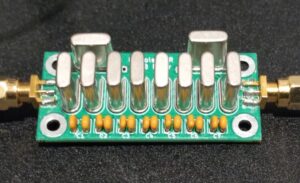
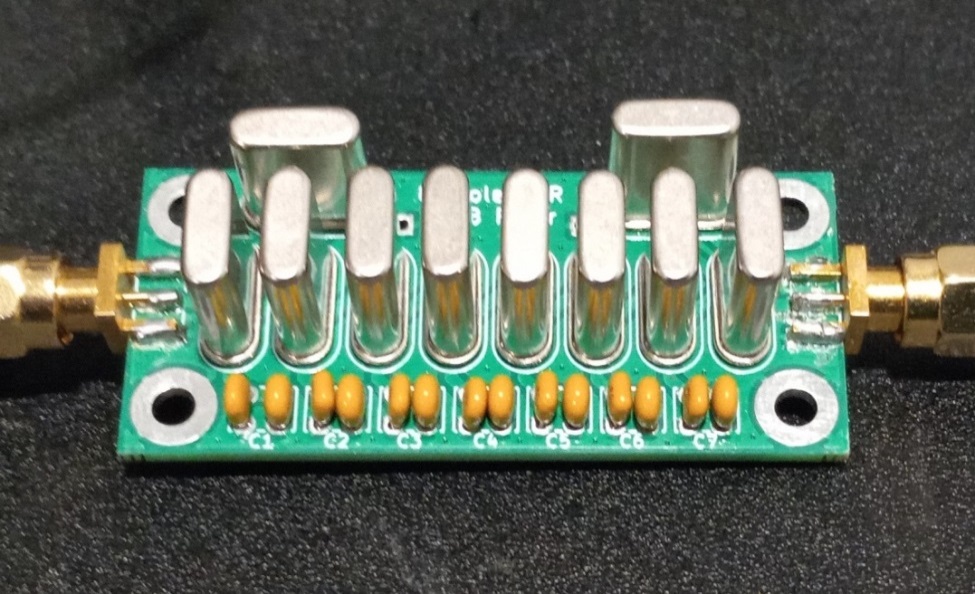
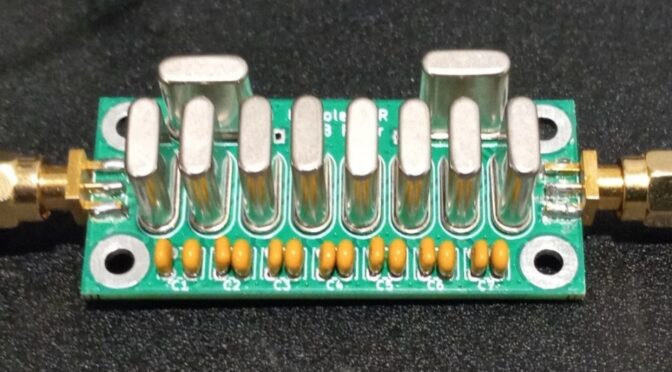
For the batch of 50 Citizen crystals[7] that I sorted, I was not successful in obtaining a set of 10 crystals that met the frequency matching criteria. Thinking that I didn’t want to invest in more crystals, I decided to look for a filter kit whose crystals had already been sorted[8] and whose capacitors had been chosen. There are at least two sources of supply for crystal filter printed circuit boards; one requires the purchase of a set of matched crystals[9] and features places for onboard matching, and another requires an external matching network[10]. I bought a bare board from the former to build a CW filter and a fully populated board from the latter for the SSB filter. A picture of the beautifully made filter from the latter is shown in Figure 1. The filter was characterized by the supplier and came with the following test data:

  • Center Frequency: 8.997500 MHz
  • 3 dB Bandwidth: 2.7 kHz
  • In/Out Impedance: ~160 ohms
  • Insertion Loss: 2.65 dB
  • Bandpass Ripple: < 1.2 dB

Figure 1. An 8-Pole Quasi-Equiripple (QER) Bandpass Filter. SMA male connectors were added to the device as supplied. No matching networks were furnished for the filter input or output. The supplier advises that matching may be achieved through the use of matching transformers or L-matching networks. Please click on the figure to enlarge it.

Crystal Filter Matching With Matching Transformers

Assuming that the supplier has already determined the best match by placing potentiometers in series with the input and output of the filter to optimize the filter shape, I relied upon their measurement of ~160 ohms as a starting point.

This is a commonly used technique. The potentiometers are adjusted for the best filter passband and stopband shape by sweeping the filter with a nanoVNA, or by viewing the passband response on a spectrum analyzer using an integral tracking generator. Once the potentiometers have been adjusted for the best passband and stopband shape, the potentiometers are measured and 50 ohms is added to each value. This is because the source impedance during the measurement is assumed to be 50 ohms as is the load impedance.

Since I wanted to match the crystals to a 50 ohm system for my QRP rig, I knew that the impedance ratio of the matching network had to be 50:160, or 1:3.2, at the input and 160:50, or 3.2:1, at the output. Since I was going to try a matching transformer for the first pass, I knew that this impedance ratio was not the same as the required turns ratio. To obtain the turns ratio, we must take the square root of the impedance ratio, 3.2, to obtain 1.79. Thus, the turns ratio is 1-turn to 1.79-turns at the input and 1.79-turns  to 1-turn at the output.

It is not possible to build a transformer with this turns ratio since only a whole number of turns is possible. Also, we must have a sufficient number of turns on the primary to avoid loading the source. A rule-of-thumb is to ensure that the impedance of the smallest winding is > 5 times the lowest impedance that must be matched. That dictates that the smallest winding must have an impedance of 50 ohms x 5 = 250 ohms at 9 MHz. Next, we use an iterative approach to find the smallest number of turns that will meet our requirements. We do this because the more turns we add, the more the inter-turn capacitance increases. This adds to the complexity of the matching solution. We must always use integer numbers of turns for both windings, so we will seldom get the exact ratio required.

Example 1 – 1-Turn to 2-Turns

If we were to round the 1:1.79 turns ratio to a whole number ratio, we ask, how close would a 1-turn to 2-turn transformer come to meet our requirements? First, we look at the impedance ratio for 1T:2T. It is simply the square of the 2-turn winding, or 4. So, this 1T:2T winding will match 50 ohms to 200 ohms which isn’t a very good match at all. Please, recall that we needed to match 50 ohms to 160 ohms. We also look at the impedance of the smallest winding to see if the magnitude of the impedance is > 5 x 50 ohms, or 250 ohms.

Assuming that the winding is purely inductive, it has an impedance magnitude given by

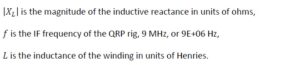
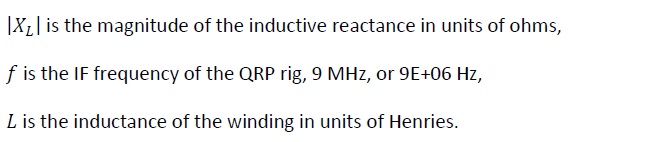
where,

Since the transformer ferrite material is FT37-43, how is the inductance for a 1-turn winding determined?

The manufacturer of the ferrite frequency supplies a factor for a specific core that, when multiplied by the square of the number of turns, will approximate the inductance of the winding. This factor is called AL.

If we study the manufacturer’s data[11] for a FT37-43 core having part number 5943000201, we learn that the AL factor is 350 nH/N2 +/-20% for #43 ferrite of FT37 dimensions.

When we have AL, the formula for inductance for a single turn in units of µH, after converting from units of nH to µH, is given by,

where,

Finally, the value of the magnitude of impedance is calculated from,

This value is not large enough to meet our reactance requirement of > 250 ohms.

Once you have mastered this process, you may wish to employ an online calculator[12].

We could repeat this exercise for other turn ratios by repeating the process, but to save some time, let’s try a ratio of 5-turns to 9-turns in the next example. The reader should try some other turns ratios to better understand the process. For example, try a ratio of 3-turns to 5-turns to see what happens.

Example – 5-Turns to 9-Turns

A ratio of 5-turns to 9 turns results in an impedance ratio of,

which is close the value, 3.2, that was calculated initially, and

Let’s try this turns ratio of 5T:9T because it results in a value that is close to the desired 160 ohms.

Next, we repeat the process by calculating the reactance of the 5-turn winding since it is the smaller of the two windings. We must first calculate the inductance,

From this value of 8.75 µH, we now calculate the magnitude of the inductive reactance at 9 MHz from,

This result is greater than our 250-ohm requirement, and it will work for us.

Matching Transformer Simulation

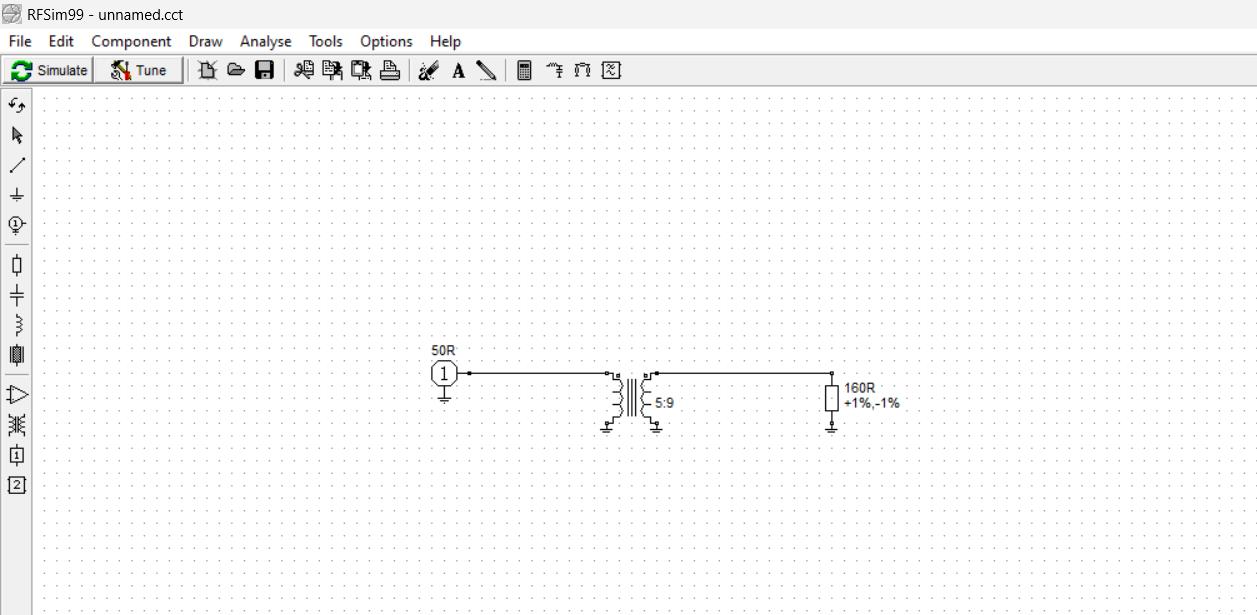
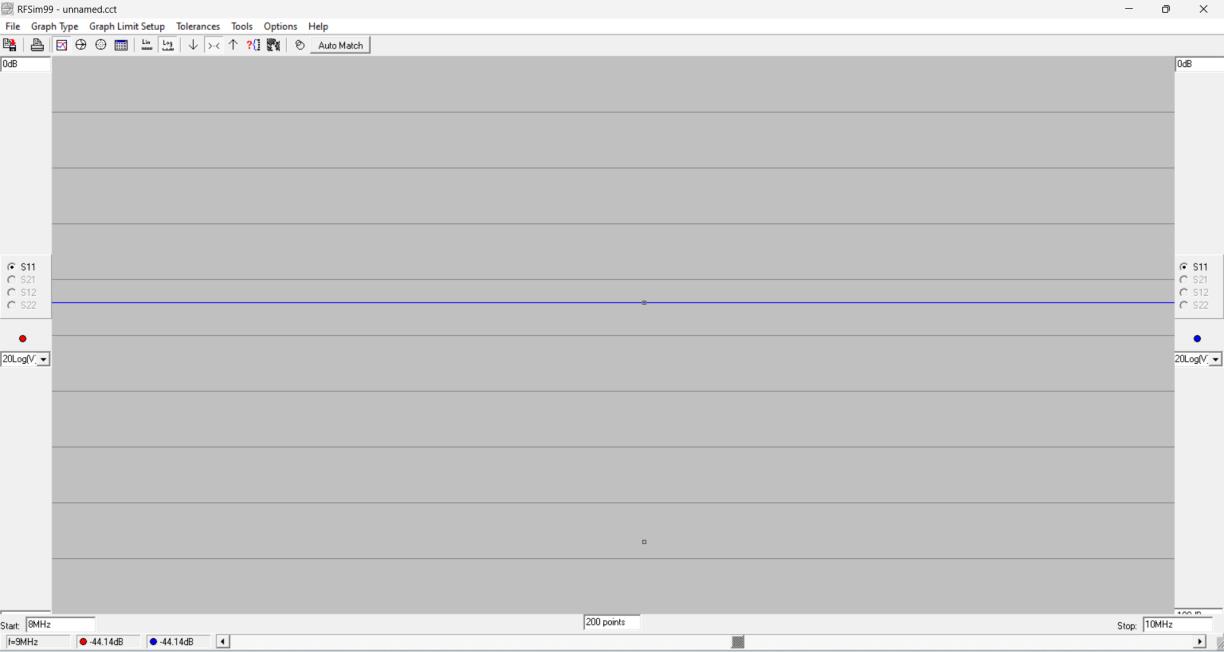
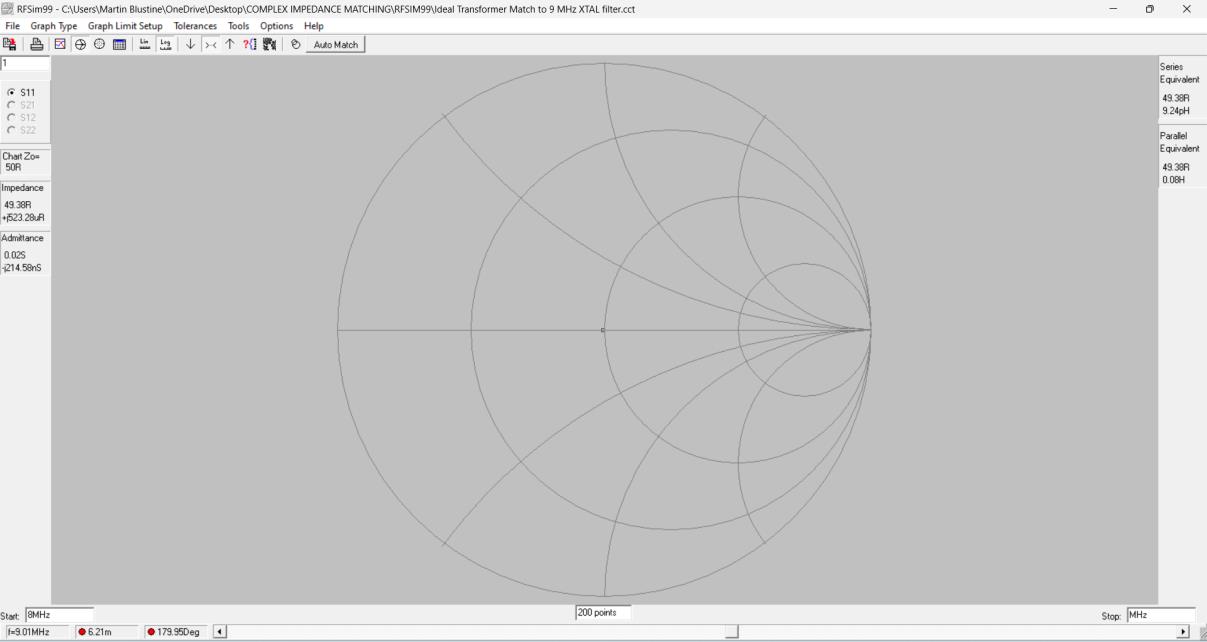
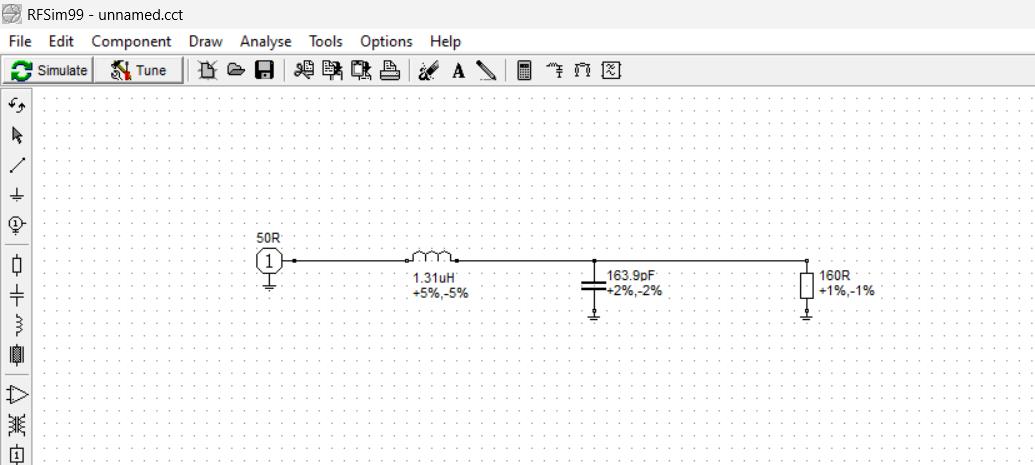
The matching transformer may be simulated using RFSim99[13]. The transformer model is shown in Figure 2. It is modeled as an ideal transformer for which there is no frequency component or coupling factor, k. A rectangular plot of the return loss of the transformer is shown in Figure 3. Since there is no frequency component, the return loss of 44.14 dB is flat for all frequencies. The turns ratio of 5T:9T results in a match between 50 ohms and 162 ohms, a slightly imperfect match for the 160-ohm load. A Smith Chart plot of the match is shown in Figure 4. If the photo is magnified, the cursor appears very close to the center of the chart for all frequencies.
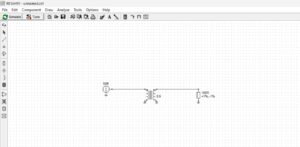
Figure 2. Matching Element Consisting of an Ideal Transformer. A turns ratio of 5T:9T is an imperfect match to 160 ohms. A perfect match would be to 162 ohms. Please click on the figure to enlarge it.
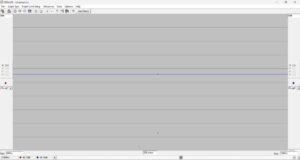
Figure 3. Return Loss for the Ideal Transformer Matching. Since there is no frequency component to an ideal transformer, the match is flat over all frequencies. The return loss is 44.14 dB due to the slight turn ratio mismatch. Please click on the figure to enlarge it.
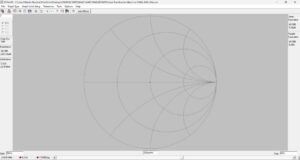
Figure 4. Smith Chart View. Since the simulation is for an ideal transformer possessing no frequency dependence, the cursor resides near the very center of the chart over a wide span of frequencies. Please click on the figure to enlarge it.

Matching Transformer Hardware

Thinking that the matching transformers might be permanently connected to the crystal filter; a printed circuit board was designed using EasyEDA, an online PCB design tool. The Gerber file for the design was transferred electronically to a fabricator, JLCPCB, in Hong Kong, and finished boards were delivered by DHL within 5 days.

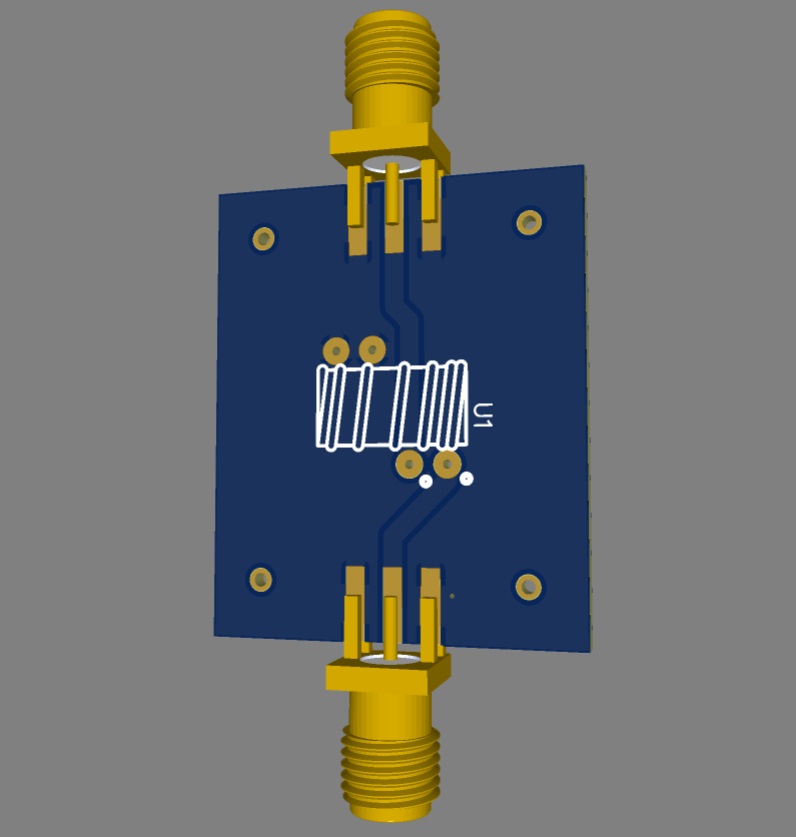
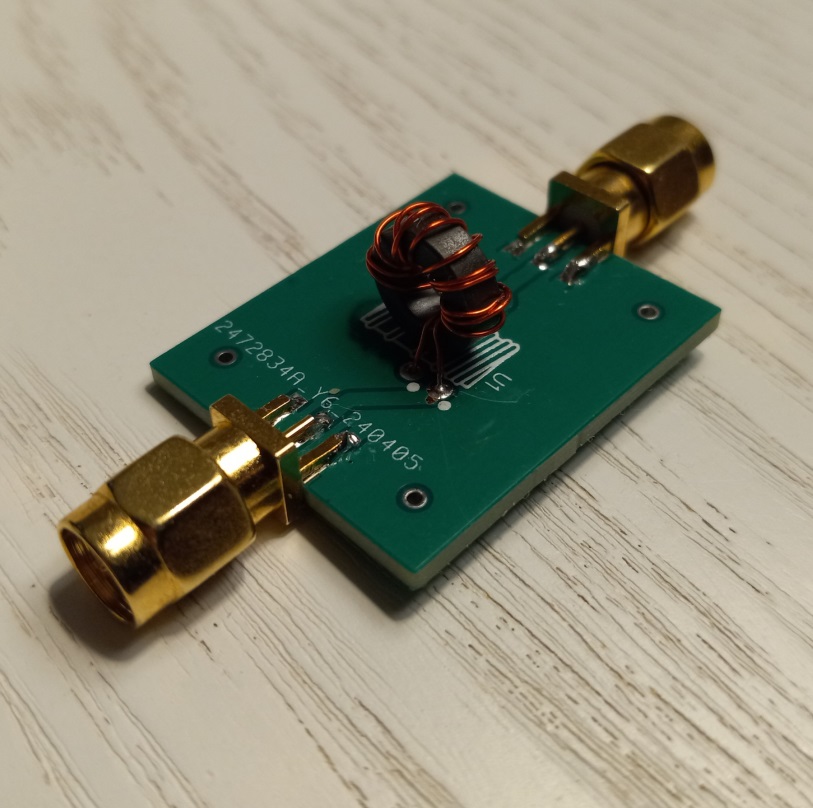
The 3D virtual design is shown in Figure 5. Two Fair Rite FT37-43 toroidal cores were wound with #27 AWG magnet wire, each with a 5-turn primary and a 9-turn secondary. They were wound in no particular sense in mind except to match symbol pattern imprinted on the silk screen.  Spoiler Alert: If you are like me, there is a 50-50 chance of winding it the right way the first time around.
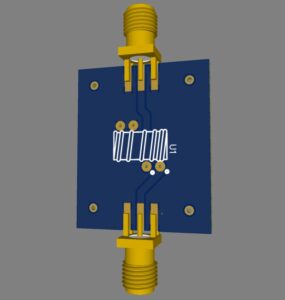
Figure 5. Matching Transformer PCB Design. Notice that the center pins of both SMA connectors are routed to the dotted pads. The center conductor from the top SMA connector is routed under the toroid. The undotted pads above the toroid are ground pads for both windings. Thus, the windings, though unequal in number, happen to be wound in the same sense. The EasyEDA design tool provides these 3D virtual views of the finished product. There is a massive library of symbols contributed by users, so there is seldom a need to draw any of them. The only caveat is for multi-pin connectors. There are instances where the schematic model pinouts do not match the PCB graphics model pinouts, and EasyEDA advises the designer to verify the models before using them. Please click on the figure to enlarge it.

The resulting transformers are shown in Figure 6. No difficulties were encountered with assembly and the PCBs and transformers worked exactly as intended.
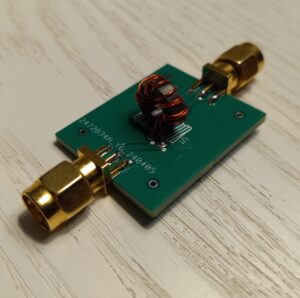
Figure 6. Matching Transformer Assembly. The two windings just happen to be wound in the same sense to match the silkscreen outline on the printed circuit board. The smaller winding has been wound right over the larger winding. Once assembled it is easy to lose track of which end of the transformer is 50 ohms and which end is 160 ohms. One should always mark the 50-ohm end with indelible ink. Male SMA connectors are used to avoid unnecessary cables and adapters between modules. Please click on the figure to enlarge it.

Crystal Filter Measurements

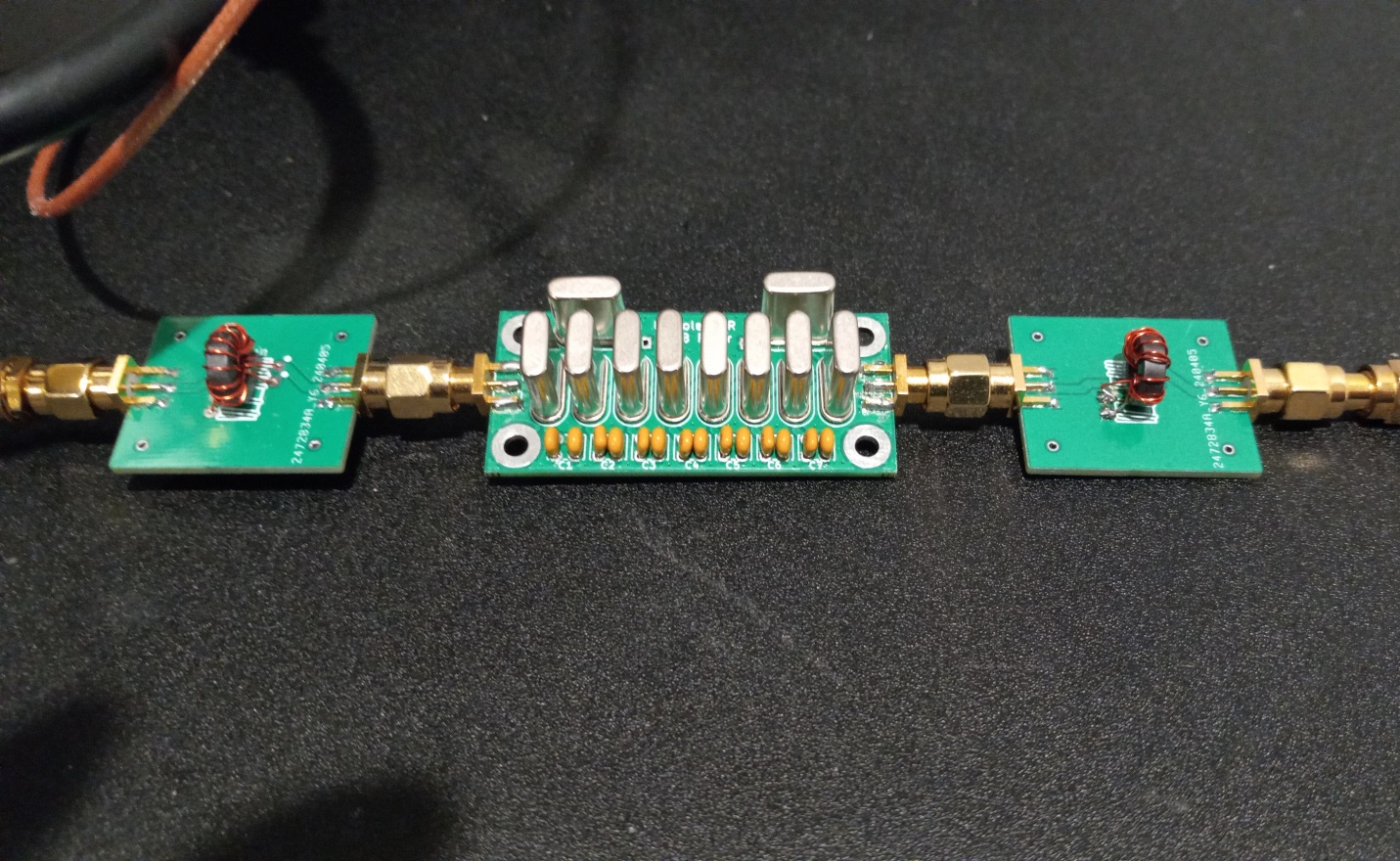
The passband and stopbands of the matched filter were measured with a spectrum analyzer with an integral tracking generator. A tracking generator is a signal source whose RF output follows the tuning of the spectrum analyzer. It could just as well have been measured with a nanoVNA that does the same thing, but I do not own one. The values of center frequency, bandwidth and insertion loss agree quite closely with the values provided by the supplier. The tracking generator outputs -10 dBm, so everything is measured relative to this power level. The coaxial cables that connect the tracking generator to the filter and the filter to the spectrum analyzer are 18” in length. No padding attenuators have been inserted in either the input path or the output path of the device under test (DUT). The test setup is shown in Figure 7. The through-path loss is zeroed out before inserting the device under test which in this case includes the crystal filter with its two matching transformers.
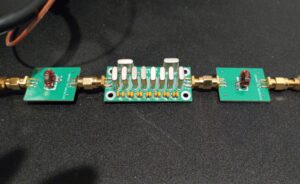
Figure 7. Test Setup For Filter Passband and Stopband Measurements. Nearly identical matching transformers have been placed at the input and output ports of the filter. The transformer to the left steps up the impedance from 50 ohms to 162 ohms, while the transformer to the right steps down the impedance from 162 ohms to 50 ohms. Neither of the 18” interconnecting coaxial cables has been padded. The through-path losses have been zeroed out before inserting the device under test. Please click on the figure to enlarge it.

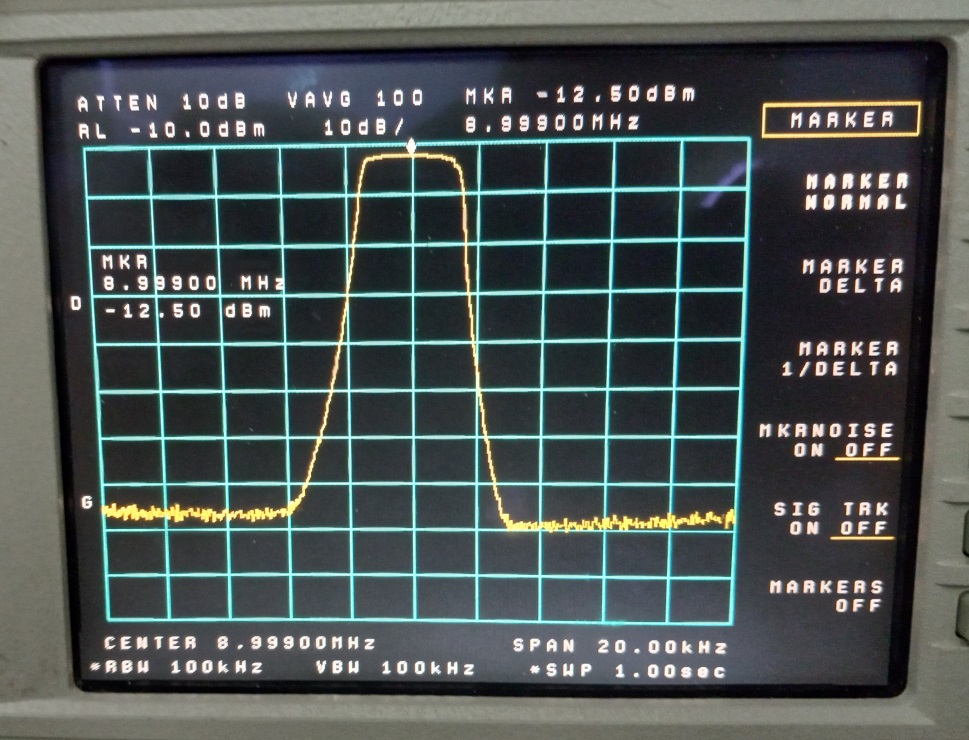
The filter passband was swept with the tracking generator to evaluate the insertion loss of the filter. The losses of cables and adapters have been zeroed out. The insertion loss shown in Figure 8 agrees closely with that measured by the supplier ~ 2.65 dB. The filter center frequency differs slightly from that reported by the supplier, but that is accounted for by the state of instrument calibration and instrument settings.
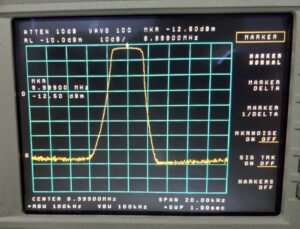
Figure 8. Crystal Filter Swept Measurement. The filter passband was swept with the tracking generator to evaluate the insertion loss of the filter. The losses of cables and adapters have been zeroed out. The insertion loss agrees with that measured by the supplier at band center ~ 2.65 dB. Please click on the figure to enlarge it.

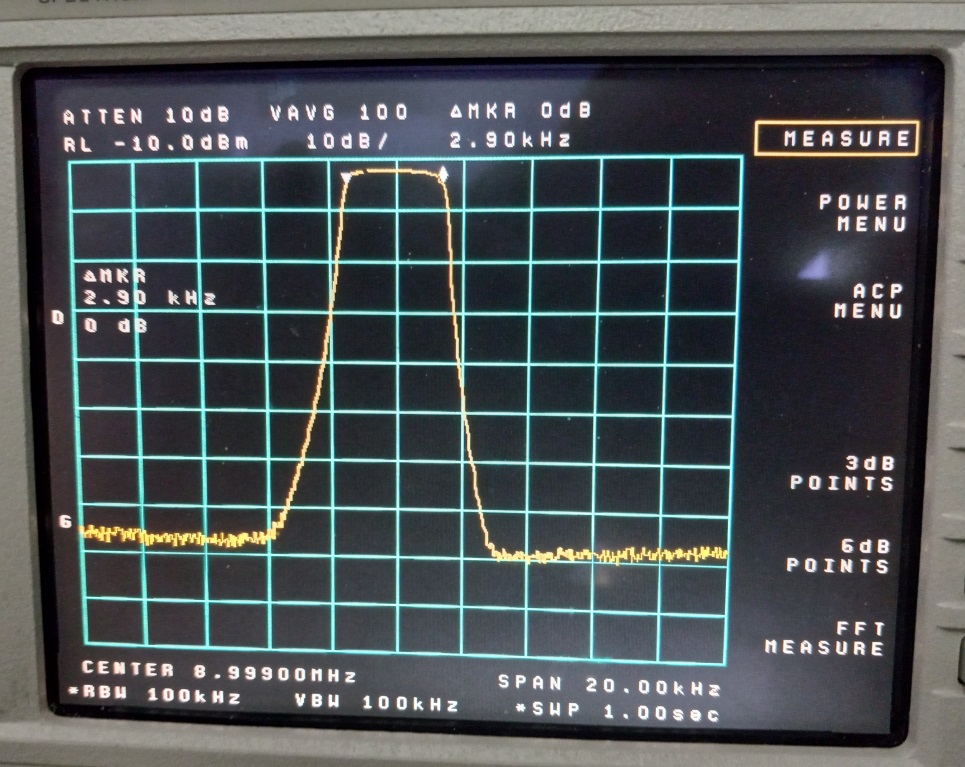
Finally, the -3 dB passband of the filter was measured with the spectrum analyzer. This measurement has been captured in Figure 9. The filter bandwidth is measured to be 2.9 kHz which compares favorably with the supplier’s measurement of 2.7 kHz although it is a bit wider than was hoped.
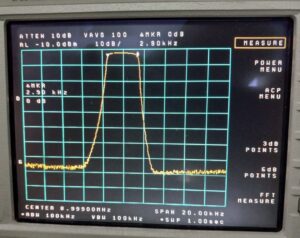
Figure 9. Crystal Filter 3 dB Passband Measurement. The bandwidth was reported by the supplier to be 2.7 kHz, but this measurement shows that it is 2.9 kHz. This is somewhat wider than was hoped, but this filter will be used. The steeper skirt at the high side of the response is characteristic of these filters. Please click on the figure to enlarge it.

Except for matching transformers, no alterations have been made to the filter other than to solder connectors to the PCB. The passband ripple is supposed to improve by bonding the crystals together with a soldered strap. From the results pictured, there doesn’t seem to be much utility in trying this. There is always the risk of damaging the filter by soldering to the crystal packages. The filter high side and low side skirt selectivities are as expected; the high side being steeper than the low side. Although this filter does not have skirts as steep as those found in a commercial SSB filter, it is adequate for this QRP rig.

Use of L-Matching Networks to Effect a Match

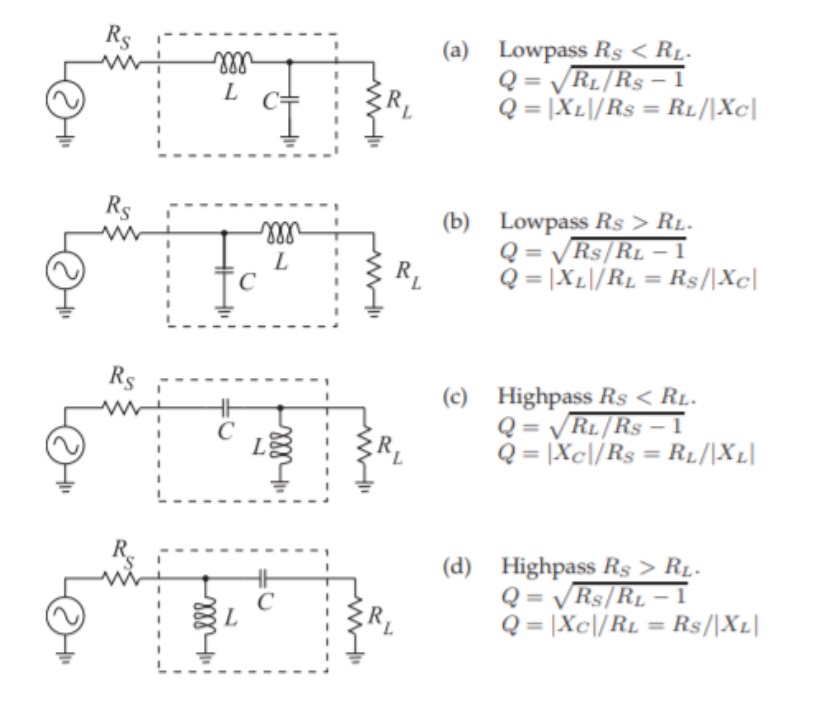
To demonstrate the method, the design of an L-matching network will be provided in this section. This same methodology has been used before in this blog[14]. For completeness, the topology choices are repeated in Figure 10.
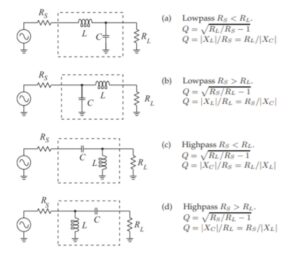
Figure 10. Topology Choices for L-Matching Networks. A topology is chosen depending upon whether a low-pass or high-pass configuration is required, and if Rs < RL , or if RS  >  RL . These topologies may be used to map and match the entire complex impedance plane. Reproduced under CC BY-NC by permission of Michael Steer, North Carolina State University. Please click on the figure to enlarge it.

The impedance level to which we wish to match, 160 ohms, is greater than the source impedance, 50 ohms, Rs < RL, and a solution topology (a) is selected, for the sake of example. It happens to be the low-pass topology that will pass DC current. This will place the inductor in series with the source and a capacitance in parallel with the crystal filter load impedance.

The shunt or parallel matching element, as it may be called, will always be closest to the larger of the two impedances. This mnemonic helps us to remember the topology choices. Whether the low-pass or high-pass topology is chosen will depend upon whether the component values are realizable, easily adjusted, and whether we want the network to pass DC current.

There is no need to design a different network for the filter output because the network is reciprocal meaning that it works the same way in reverse, and the mnemonic still applies. The output topology would be a shunt capacitor at the filter and a series inductor towards the load. You might prove this to yourself as an exercise by choosing the topology used for RS > RL  since, this time, the high source impedance will be 160 ohms and the load impedance will be 50 ohms.

From Figure 10 (a) we have,
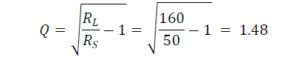
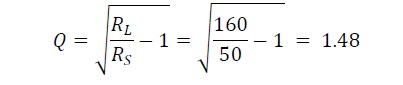
and
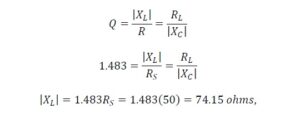
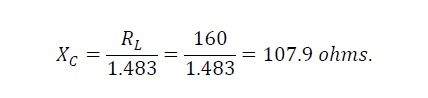
and
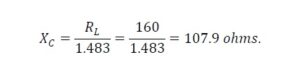
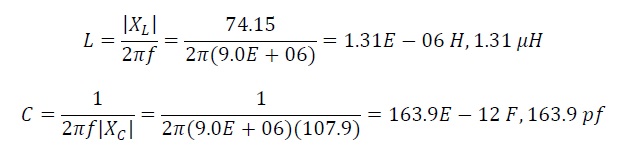
Solving for the values of the inductance and the capacitance, we have,
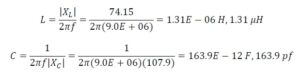
The matching network consists of a series inductance of 1.31 µH and a shunt capacitance of 163.9 pf.

Once you have mastered this process, you may wish to employ an online calculator[15].

L-Network Simulation

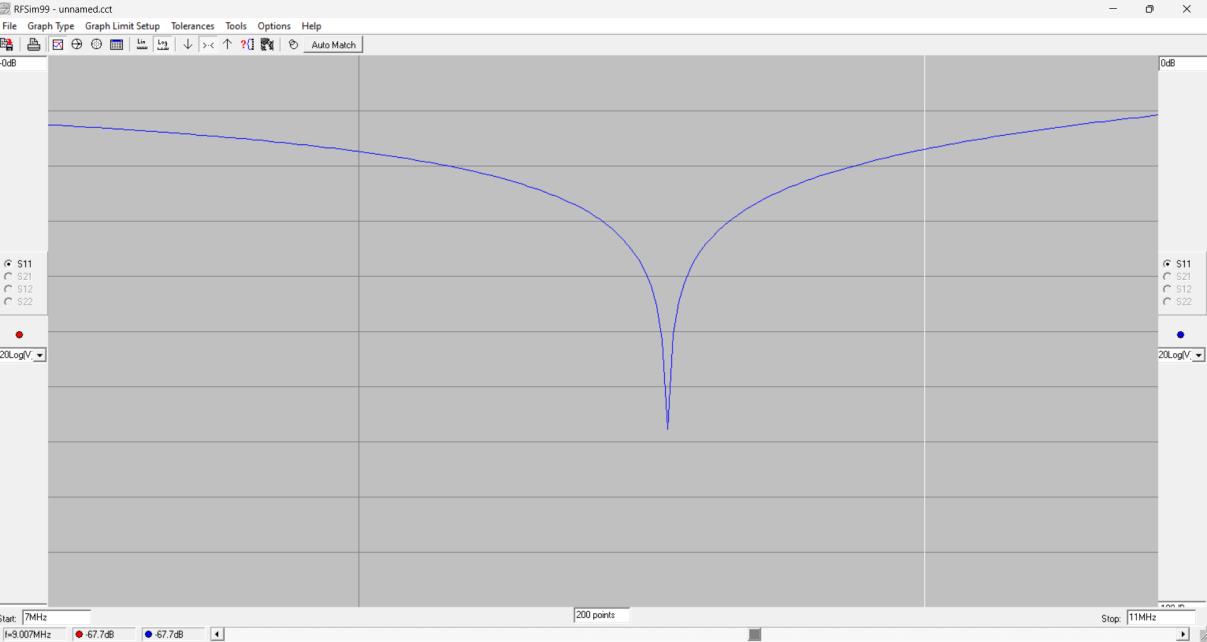
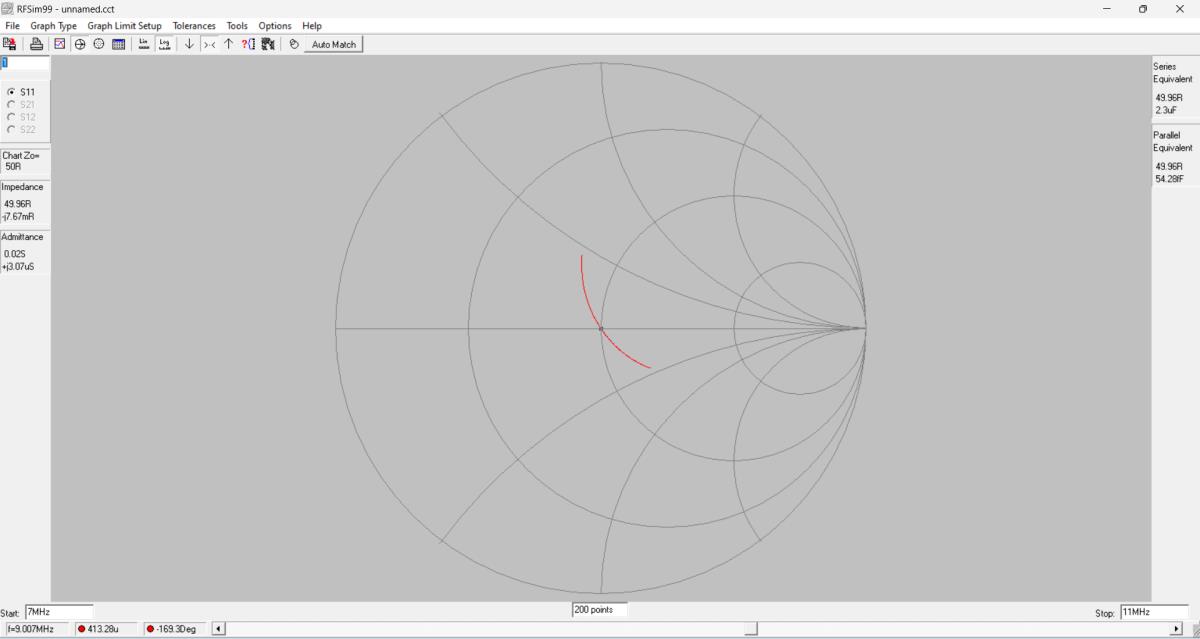
We can use RFSim99 to prove that we have achieved a match with this L-network. The model used for the simulation is shown in Figure 11. A rectangular plot of the return loss is shown in Figure 12. The Smith Chart of the match is shown in Figure 13.
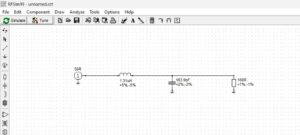
Figure 11. L-Matching Network Model. The 160-ohm input load impedance of the crystal filter can be matched to the 50-ohm source impedance with an L-network consisting of a series inductance of 1.31 µH and a shunt capacitance of 163.9 pf. Please click on the figure to enlarge it.
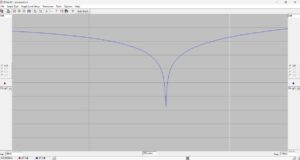
Figure 12. Return Loss of the L-Matching Network. The sweep is from 7 MHz to 11 MHz. The return loss for a very simple L-matching network at the design frequency of 9 MHz is better than 67 dB. Please click on the figure to enlarge it.
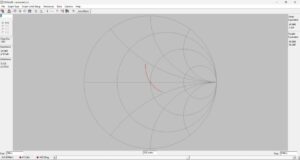
Figure 13. Smith Chart for the L-Matching Network. The sweep is from 7 MHz to 11 MHz. A perfect match is displayed on the Smith Chart at 9 MHz with the cursor positioned at the very center of the chart. Please click on the figure to enlarge it.

Conclusions

It has been demonstrated that matching to a crystal filter, commercial or homebrew, is not difficult. The techniques used for transformer and L-matching are ones that have been demonstrated previously. It is hoped that the reader will try both techniques for practice if only by following the examples that have been worked on.

References

[1] DigiKey, 701 Brooks Avenue South, Thief River Falls, MN.

[2] Milton Dishal, “Modern Network Theory Design of Single-Sideband Crystal Ladder Filters,” Proceedings of the IEEE, Sep 1965.

[3] Dishal Download: https://www.minikits.com.au/downloads

[4] Wes Hayward, Designing and Building Simple Crystal Filters, QST July 1987, pp. 24-29.

[5] Charlie Morris, ZL2CTM, https://www.youtube.com/watch?v=Ur7Cze-X0zo

[6] Jerry Hall, W0PWE, https://www.qsl.net/w0pwe/HB/Xtal_Osc.html

[7] Citizens Part Number HC-49/U-S9000000ABJB

[8] https://kitsandparts.com

[9] Ibid. https://kitsandparts.com/crystals.php

https://kitsandparts.com/XF.php

[10] Mostly DIY RF, https://mostlydiyrf.com/qer

[11] Fair Rite, PN 5943000201, https://fair-rite.com/product/toroids-5943000201/

[12] https://toroids.info/FT37-43.php

[13] James Butler, AD5GG, https://www.ad5gg.com/2017/04/06/free-rf-simulation-software/

[14] Martin Blustine, K1FQL, https://www.n1fd.org/2022/06/11/l-matching-networks/

[15] John Wetherell, author, Impedance Matching Network Designer, https://home.sandiego.edu/~ekim/e194rfs01/jwmatcher/matcher2.html

 

Fun with the Clear Sky Institute HamClock

I haven’t had the occasion to use any programming languages since retirement. That’s why the addition of a Raspberry Pi 4 Model B to the shack was a welcome change. I like to think of the Raspberry Pi as just another computer – one that uses a different operating system. With the Raspberry Pi, I can browse the Internet, access email, and write and run programs.

When I began to assemble a shack, I reserved a space on the wall for a 32″ TV, Figure 1, which was purchased during a temporary rental stay. That TV has been unused for 3 years, but it was earmarked for a HamClock.

Figure 1. Unused 32″ TV Earmarked for HamClock. The TV was wall-mounted above the shack monitors. Please click on image to expand.

I searched the N1FD site to see if anyone had written about HamClock, but no articles were found. The first article for HamClock, written by Elwood Downey, WB0OEW, appeared in October 2017 QST[1]. In his article, he calls for the use of an Adafruit HUZZAH ESP8266 Wi-Fi system-on-chip. That device was fastened to the back of a 7″ TFT display.

The version of HamClock that I built for use with the 32″ HDTV employs the Raspberry Pi 4 Model B, Figure 2, with 2 GB memory[2]. The kit that I found on Amazon includes a 64 GB microSD card (with USB adapter) onto which the Raspberry Pi operating system had been preloaded. The kit also includes a plastic case with fan, little rubber feet, tiny screws to attach a camera, device heatsinks, a wall-wart power supply, a micro HDMI to HDMI cable, an instruction manual and various assembly instruction cards. The user has to provide their own USB mouse and keyboard. I already owned a wireless mouse and keyboard so I was able to use a single USB 2.0 port on the Pi for the wireless adapter.

If you already have a microSD memory card with USB adapter, power supply, mouse, keyboard and HDMI cable, you could get by with a Raspberry Pi Zero[3] at one-fourth the price.

Figure 2. Raspberry Pi 4 With Wireless Mouse and Keyboard. A single USB 2.0 port on the Pi is used for the wireless adapter leaving 1 x USB 2.0 and 2 x USB 3.0 ports unused. Power and HDMI cables are visible. Please click on image to expand.

If your Raspberry Pi does not come equipped with the operating system installed, you can download it from the official Raspberry Pi website and store it on a microSD card for installation provided that you have a USB to microSD card adapter. The Raspberry Pi site allows you to select an operating system and it allows you to specify where the operating system will be stored upon download:

https://www.raspberrypi.com/software/

Please, follow the directions to install the operating system on your device.

I noticed an ambiguity in the kit documentation regarding connection of the cooling fan to the Pi bus header. A tiny drawing, Figure 3, shows where the red and black leads should be connected, namely pins 1 and 14, respectively. The documentation should make it clear that the long header row that contains pin 1 contains all of the odd-numbered pins while the long header row that contains pin 14 contains all of the even-numbered pins. This makes it a bit easier to locate pin 14.Figure 3. Location of the Fan Voltage Pins. The long header row that contains pin 1 contains all of the odd-numbered pins while the long header row that contains pin 14 contains all of the even-numbered pins. Please click on image to expand.

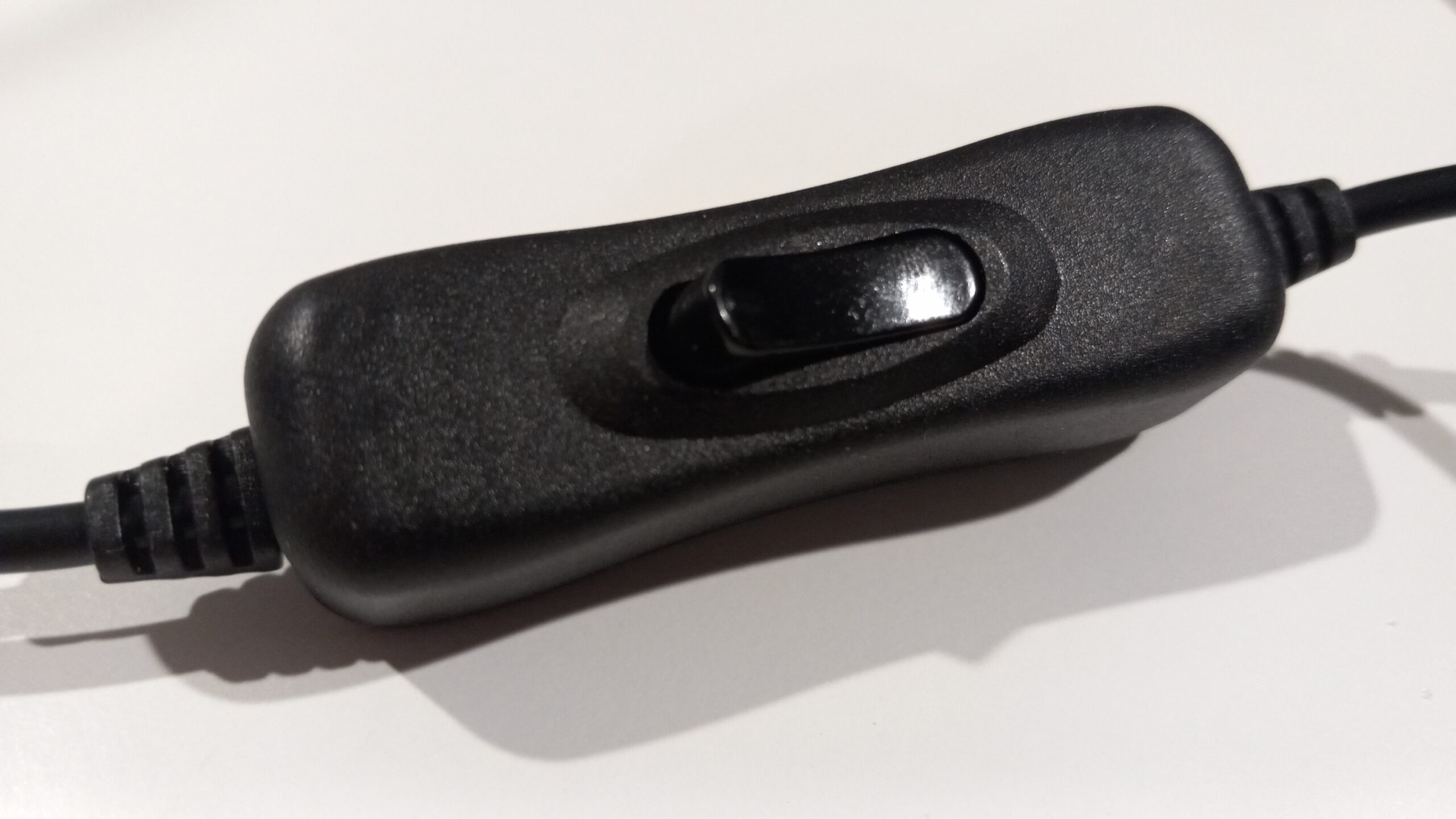
The instructions advise that the HDMI port closest to the DC power supply input be employed if only one monitor will be used. I was confused about the power supply connector. It may be plugged into the Pi upside down. However, I found that a bright flashlight can be used to look inside the power supply connector and inside the Pi power supply input jack to ensure that the conductive contacts face one another. If the connector has been plugged in correctly, some LED status lights on the Pi circuit card should illuminate once the inline DC power cord switch, Figure 4, has been turned on.

This switch has to be used with caution. The operating system, if running, must be shut down prior to turning the DC power switch to the off position. Failure to do so could corrupt data stored in memory and on the microSD card. This is a minor weakness in the design.

Figure 4. The Inline DC Power Switch. The operating system must be shut down from the Raspberry Pi menu icon on the taskbar before turning the DC power switch to the off position. Please click on image to expand.

Two methods may be used to shut down the Raspberry Pi. There is a Raspberry icon that appears on the taskbar. One of the drop-down selections is to log out. Once selected, another dropdown appears that offers the choice to shutdown or reboot. There is a second method that permits shutdown from a terminal window, Figure 5, which may be opened from the taskbar. One need only enter the command:

sudo shutdown -h now

to close the operating system. A third option is to add a momentary switch to the Pi bus header. That may be used to assert a shutdown command for the operating system. I have not implemented that feature.

Figure 5. Terminal Window. A terminal window may be opened from the Pi taskbar. Please click on image to expand.

Once an unused HDMI input to the monitor or TV is selected, and the mouse, keyboard and HDMI cable are plugged in, the power switch in the supply power cord may be switched on. Within seconds the Raspberry Pi logo appears followed by a series of questions that include language and time zone. The operating system will also ask for access to WiFi. I found that WiFi was easier than connecting another Ethernet cable to the access point.

Once WiFi is connected, the operating system will update. Finally, a desktop appears. The taskbar was docked to the top of the screen, but I moved it to the bottom because that is where I am used to seeing it, Figure 6. That may be accomplished by selecting that feature from the Raspberry Pi icon on the taskbar. The operating system provides access to the Internet via a browser icon that appears on the taskbar. There are also icons for a terminal window and Bluetooth.

Figure 6. Taskbar Moved and Docked to the Bottom of the Screen. This may be selected from screen appearance under the Raspberry Pi icon on the taskbar. Wallpaper like this may be selected from a list. Please click on image to expand.

The Raspberry Pi icon, Figure 7, provides several selections for screen appearance, resolution and the usual accessories. It also provides a means for shutting down the operating system.

Figure 7. Menu Provided Under Raspberry Pi Accessible from Taskbar. Access to many options is provided here including Raspberry Pi screen resolution. This is not the same as the HamClock screen resolution setting, which will be selected separately. Please click on image to expand.

It was learned that the means for capturing screenshots within the Pi operating system is Print Screen (PrtSc) just as it is in Windows, so this method has been used to illustrate this article. The images are stored as PNG files in the home Raspberry Pi folder, not under Screenshots in the Photo folder where one would expect them to be.

After opening a terminal window, I followed the directions provided at the Clear Sky Institute[4] web page under the Desktop tab with some notable exceptions. First, I took the advice of KM4ACK[5] to circumvent error messages by executing two scripts before attempting anything else. These scripts may be found listed under the Desktop tab under the subsection titled “To install HamClock on other UNIX-like systems follow these steps”, paragraph 2, “If you get errors”[6]. These steps at Clear Sky are correct except for a syntax error pointed out by KM4ACK[7] in the script:

sudo apt-get -y curl install make g++ libx11-dev xserver-xorg raspberrypi-ui-mods libraspberrypi-dev linux-libc-dev lightdm lxsession openssl

This script must be corrected so that the word ‘install’ precedes the word “curl”. The corrected script should read:

sudo apt-get -y install curl make g++ libx11-dev xserver-xorg raspberrypi-ui-mods libraspberrypi-dev linux-libc-dev lightdm lxsession openssl

I don’t know why this has not been corrected on the Clear Sky Institute web page, but I am happy that KM4ACK pointed it out.

We may now follow the steps listed under “To install HamClock on a Raspberry Pi follow these steps”. It is suggested that the lines of code be executed line-by-line.

cd
curl -O http://www.clearskyinstitute.com/ham/HamClock/install-hc-rpi
chmod u+x install-hc-rpi
./install-hc-rpi

If you choose not to install a desktop icon, you may run this script from a terminal window to start HamClock:

hamclock &

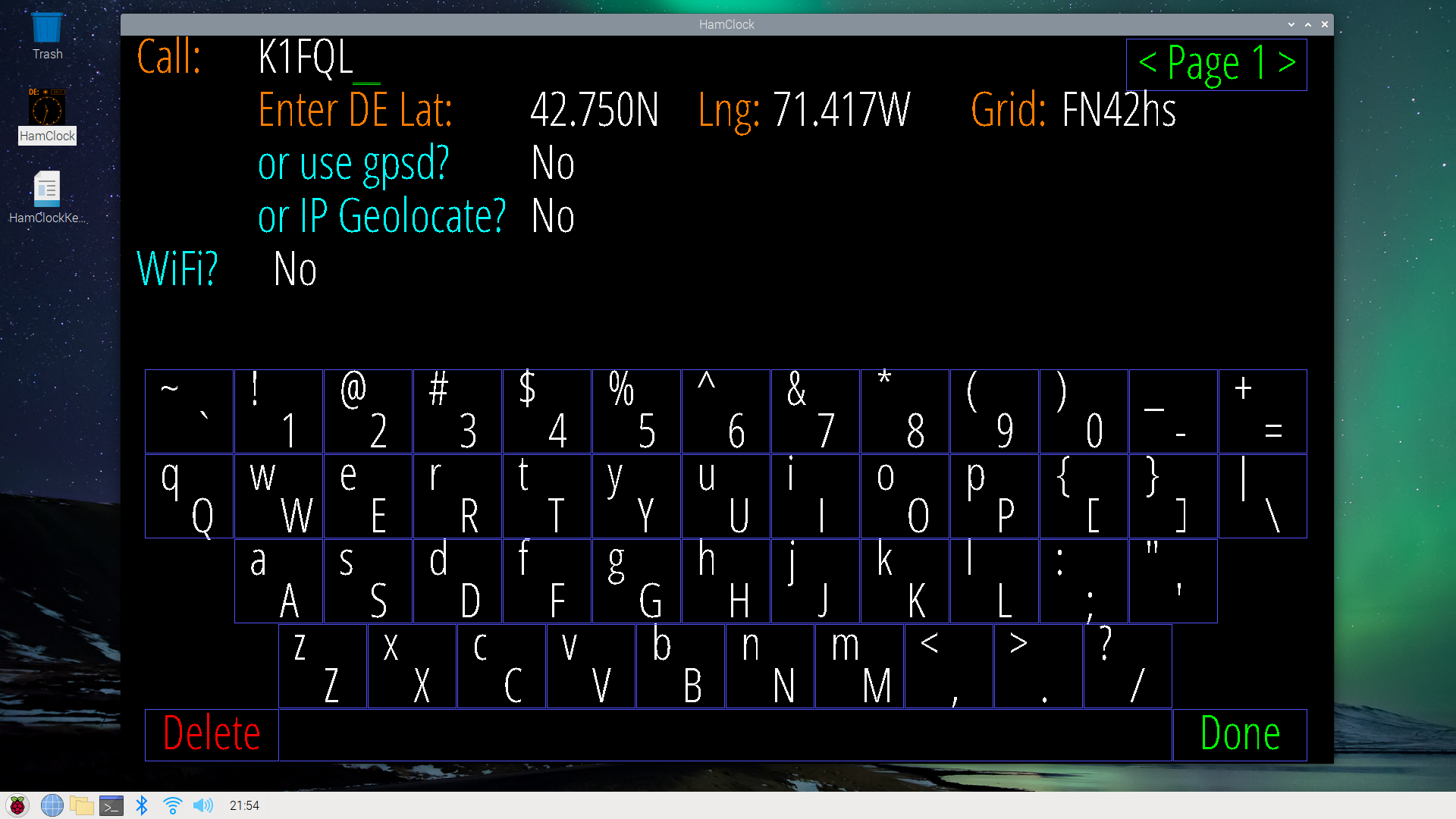
The first time that HamClock is run, some entries are requested. HamClock will also ask if you would like to connect to WiFi, Figure 8. Since you may have entered these for the Raspberry Pi operating system, you may answer yes if you would like to connect. HamClock will enter your username and password for you.

Figure 8. Connect to WiFi Screen. You will enter your call sign on setup page 1. You may provide your network username and password after saying yes to WiFi. If you provided these to the Raspberry Pi operating system, they will auto-fill if you select, yes. You can enter your latitude, longitude and grid square here, or you can Geolocate on your IP address (not recommended). Please click on image to expand.

Once the HamClock screen appears, if the correct resolution has been chosen, the screen should be mostly filled from top to bottom, but there may be some black bars on either side of the window. There are numerous instructions online about how to deal with this. I didn’t bother. Once I had chosen the closest resolution to my screen, 1366 x 768, I left well enough alone. HamClock also asks if you would like full-screen view, Figure 9, which eliminates the HamClock title bar as well as the taskbar. I selected that view.

Figure 9. Where to Select Full-Screen View. Full-screen view selection is on setup page 5. Please click on image to expand.

To close HamClock, please note that there is a small padlock symbol, Figure 10, beneath UTC in the upper left-hand corner. If one left clicks and holds the lock for a few seconds, then releases, a script will appear that will ask if you would like to exit the program. If you also intend to shut down the Pi, please don’t forget the logout procedure that is found under the Pi logo in the taskbar.

Figure 10. Padlock Symbol Beneath the UTC Box. If you were to left click and hold on the lock for a few seconds and release, a script will appear that will ask if you would like to exit HamClock. Please click on image to expand.

If you would like HamClock to start automatically upon reboot, a script that will do it may be run anytime from a terminal window. The scripts are found under, ” To install HamClock on other UNIX-like systems follow these steps”, in paragraph 10:

cd ~/ESPHamClock
mkdir -p ~/.config/autostart
cp hamclock.desktop ~/.config/autostart

You may want to place a HamClock icon on your Raspberry Pi desktop. That may be accomplished by copying, pasting and executing the following script in a terminal window:

cd ~/ESPHamClock
mkdir -p ~/.hamclock
cp hamclock.png ~/.hamclock
cp -p hamclock.desktop ~/Desktop

After running the scripts, close the terminal window and reboot the machine from the Pi icon. HamClock should restart immediately. The size of the HamClock window may appear reduced after reboot but may be expanded just as one might expand any other window.

As soon as HamClock is up and running you may want to explore all of the options and items that are found under “Terrain” that is found in the upper left-hand corner of the map, Figure 11. An extensive dropdown menu will appear. Go ahead and press the radio buttons followed by “okay” to see what happens. Every new screen is a surprise. It’s not that hard to get back to the screen where you started, so please experiment a little bit.

Figure 11. Dropdown Menu for the Main Graphic View. You will want to explore all of the options available from this dropdown menu visible to the left of the Mercator projection. Other menus may be accessed by clicking on the titles that appear within the smaller graphics. For a complete description, please consult the User Guide. Please click on image to expand.

Additional views for the smaller graphics may be requested by clicking on the graphics titles, themselves. For example, you may want to display propagation paths from your locale as supplied by WSJT, Figure 12. There are also satellite and space station orbits.

To change the color of your call sign background, click to the right of your call sign. To change the color of your call sign, click on the letters.

Figure 12. Display of Propagation Paths From Our Locale. If WSJT-X was selected on Page 2 of the setup menu, this graphic will be displayed. My call sign color and background color has been changed for this view. Please click on image to expand.

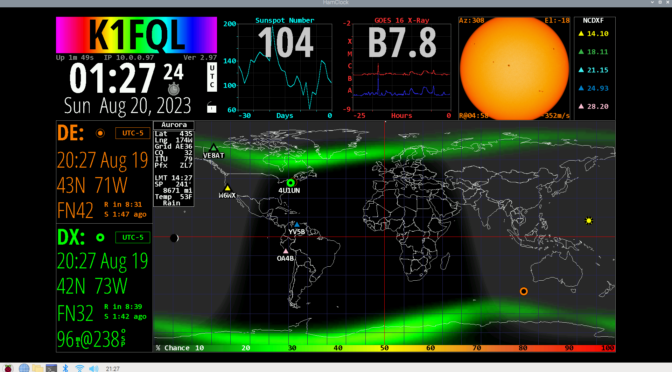
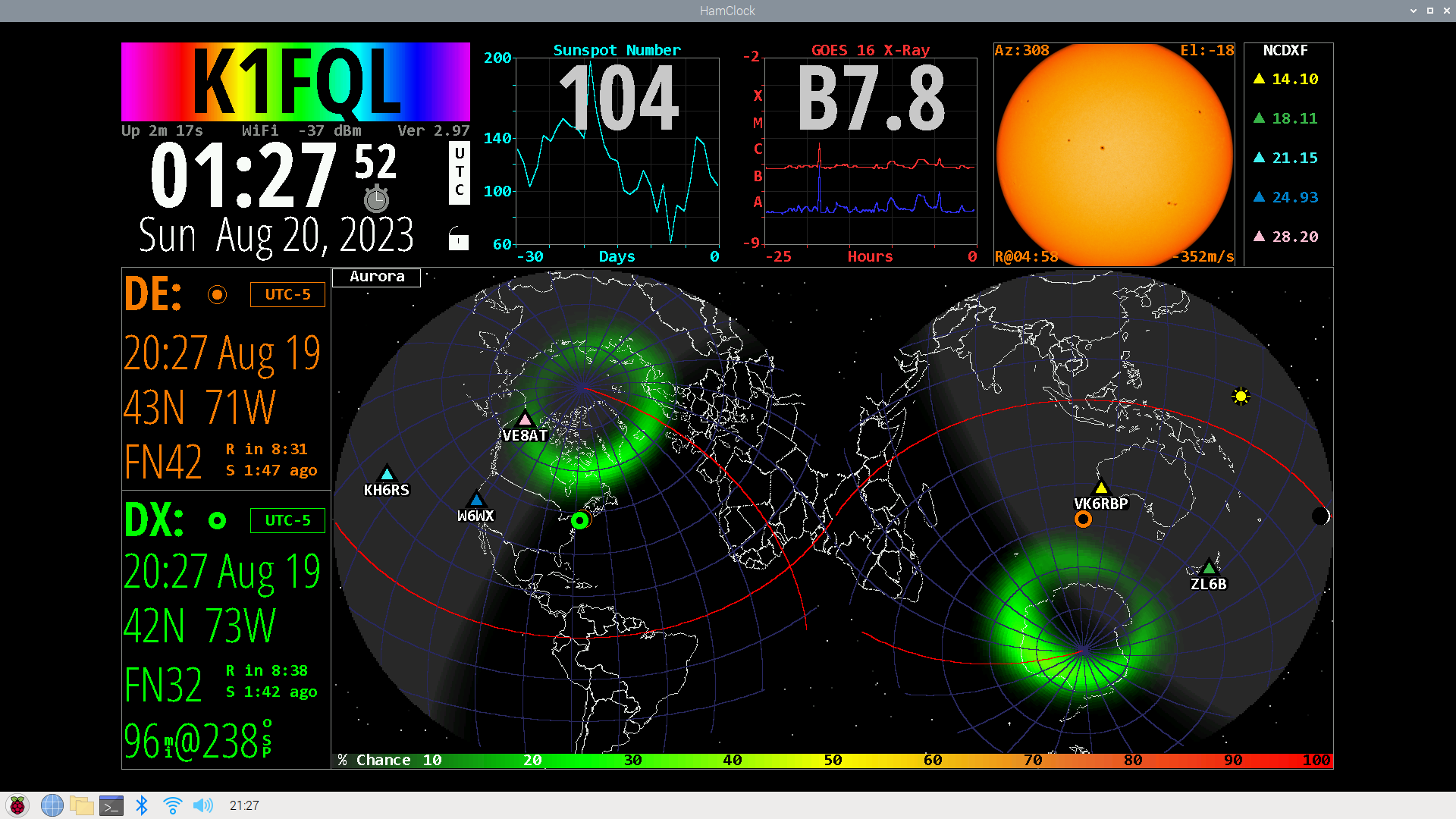
A particularly interesting view of the aurora is shown in Figure 13. This is one more example of how much data is available for presentation in Hamclock.

Figure 13.  Display of the Aurora. This is another example of how much data is available for display within the HamClock application. Please click on image to expand.

A complete HamClock User Guide is available at the Clear Sky Institute website under the User Guide tab[8].

Please let me know if you build a HamClock of your own. It is nice to receive feedback.

References:

[1] Elwood Downey, WB0OEW, HamClock, QST, October 2017, pp. 42-44.

[2] Raspberry Pi 4, Model B, 2 GB.

https://www.amazon.com/dp/B07TMGBPFQ/ref=sspa_dk_detail_6?ie=UTF8&pd_rd_i=B07TKFKKMPp13NParams&s=electronics&sp_csd=d2lkZ2V0TmFtZT1zcF9kZXRhaWxfdGhlbWF0aWM&th=1

[3] Raspberry Pi Zero (2017).

https://www.amazon.com/Raspberry-Pi-Zero-Wireless-model/dp/B06XFZC3BX/ref=sr_1_8?crid=2P2OQ2SF3LHR5&keywords=raspberry+pi&qid=1692662504&sprefix=Raspberry+pi%2Caps%2C151&sr=8-8

[4] Elwood Downey, WB0OEW, Clear Sky Institute. https://www.clearskyinstitute.com/ham/HamClock/

[5] Jason Oleham, KM4ACK, YouTube, 2:30. https://www.youtube.com/watch?v=2Cy5Swmk3gU

[6] Elwood Downey, WB0OEW, Clear Sky Institute, Op. Cit., Desktop tab.

[7] Jason Oleham, KM4ACK, YouTube, Op. Cit.

[8] Elwood Downey, WB0OEW, Clear Sky Institute, Op. Cit., User Guide tab.


Restoration of an Agilent 53131A Frequency Counter

An enjoyable hobby is the restoration of vintage HP, Agilent, Tektronix and GenRad test equipment. In their day, these brands represented some of the finest U.S. engineering and manufacturing in the world, and two of them still do. What is common to all of them is the attention paid to ergonomics, product design and documentation.

Each time I restore one of these instruments, I gain insight into what the design engineers and the product designers had in mind.

Recently, I acquired an Agilent 53131A Frequency Counter found on eBay, one of my favorite sources for old test equipment. It is always a calculated risk because I never know for sure if whatever I have bought will arrive dead on arrival. Fortunately, eBay is very good about standing behind anything sold on their site that has been represented to be in good working order. They are unlike auction consolidators such as Allsurplus where everything is sold as is.

Naturally, when the counter arrived, I subjected it to the obligatory smoke test. The result is shown if Figure 1. The counter completed its self-test routine and rewarded me with a series of dashed lines in the display. That was a good sign, and it was off to a good start. When I purchased the unit, I made a best offer, and it was accepted. The reason that I did that is because I noticed some minor irregularities in the unit.

First of all, the display appeared to be dim in the photo, the likely result of running the counter for long durations for many years, maybe 30. The second thing that I noticed was the absence of the front and rear bumpers as well as a carrying handle. These, I am quite sure, were scavenged for resale on eBay. I have become quite used to that. Most of the instruments that I have restored were received minus their bottom and rear feet and in some cases their rack handles – a minor annoyance. I simply buy some and put them back on.

Most often these counters are purchased for HF use and do not feature prescaler options to extend the frequency range. This counter was no different. It was also shipped with the standard low-stability clock oscillator.

Figure 1. Agilent 53131A Frequency Counter, As Received. The display is dim but the unit passes self-test and enters ready mode. The unit was advertised and shipped without its front and rear bumpers as well as its carrying handle. The time base is a standard low-stability one, and there is no frequency extender option installed.

Upon seeing the condition of the display, I looked at the power supply schematic and found the test points for VFD display bias. The voltages checked okay. That test having been completed; I ordered a new display on eBay from a seller in China. The old display was marked Japan, but I could not find any other suitable displays for sale other than one in a non-working counter being sold for parts only.

I also looked for an inexpensive prescaler to install as an option. The one chosen works up to 3 GHz but others with higher division ratios were also available. This one provides accurate results for signals as low as -15 dBm, which is good enough for my purposes.

There were many sources for the front and rear bumpers and the carrying handle on eBay. I likely bought my own back.

All parts arrived in less than two weeks, which is about average for items ordered overseas that must pass through U.S. Customs.

An initial test was run on the counter to make sure that it would arm and run. I used whatever signal source was closest for this test, in this case, an HP 3314A Function Generator. The setup is shown in Figure 2. Both units are out of calibration so, it can’t be determined which is worse, the counter or the function generator.

Figure 2. Counter, As Received, Measuring 18 MHz. The most convenient signal source for initial testing was a bench-top HP 3314A Function Generator. Both the counter and the function generator are out of calibration. It’s difficult to know which is worse.

The first part to arrive was the frequency prescaler. The only disassembly required for installation was the instrument top cover.

I fastened the prescaler to the wall of the chassis on a pair of standoffs. The prescaler board was supplied with a coaxial cable for connection to a front panel SMA to BNC adapter and a ribbon cable for connection to the motherboard. The whole installation process was completed in an hour. The result is shown in Figure 3. The sensitivity of the prescaler was tested with a test signal of 2.55 GHz, as this particular synthesizer won’t tune much higher than that. The signal level was set to -10 dBm but the prescaler will provide stable counts for signals as low as -15 dBm.

Figure 3. Prescaler Test. The prescaler was tested with an HP 8663A Synthesized Signal Generator set to 2.55 GHz because it is the only microwave source available. A stable count is observed for power levels as low as -15 dBm. The front and rear bumpers as well as a carrying handle have been installed.

Once the vacuum fluorescent display arrived, I began to tear down the counter to the level required to remove the front panel. This also permitted cleaning 30 years of grime from the enclosure and circuit cards. Figure 4 shows the teardown.

Figure 4. Counter Teardown. The counter was disassembled using the assembly-level service guide. The power supply and motherboard remain in place. Only the front panel required removal.

Figure 5 provides a closer view of the front panel PCB and the old display. The new display is in the foreground. While the two displays are functionally the same, they have completely different layouts and are of different manufacture.

Figure 5. Close-up of the Front Panel and Vacuum Fluorescent Displays. While the displays look alike and possess the same pin-outs, they are entirely different designs.

The old display was removed from the front panel display printed circuit board that also contains the soft contacts for the front panel controls. Utmost care was taken in unsoldering and removing the old display. I wanted to preserve the old display if the new display was dead on arrival.

The unsoldering process was the one that I always use. The solder joints were painted with non-corrosive soldering flux. Next, each joint was resoldered with compatible solder. This is an important step because old solder joints tend to degrade with time. The newly resoldered joints are more easily heated and solder more easily removed with a solder puller like the one shown in Figure 6. This is an inexpensive tool that, when mastered, can remove all of the solder from the solder joints. Sometimes it takes three or even four passes with the solder puller on each joint to remove all of the solder from the holes. Once all of the solder has been removed, a needle nose pliers is used to wiggle each of the leads to ensure that it is free of solder and free from each hole. Another technique can be used provided that the replacement part is known to be good. Simply snip the leads of the old part and remove it. Then, there are still leads that have to be removed and holes that have to be cleaned. Some find this technique easier. Avoid the use of solder wick if at all possible. It really isn’t needed, and it usually ruins the circuit pads.

Figure 6. A Generic Solder Puller. This is a simple device that is just a spring-loaded plunger that, when released, can vacuum solder from solder joints. It pays to master the use of this device. Avoid the use of solder wick.

The old VFD was removed from the front circuit board. The old part and the new part are shown in Figure 7 for comparison. The two parts are of different provenance.

Figure 7. Old and New Vacuum Fluorescent Displays. The designs are very different: (top) the old part, (bottom) the new part. The pins on the old part are intact.

The display circuit card is shown in Figure 8. Non-corrosive soldering flux was painted on each solder joint and each joint was resoldered. This step is essential for old solder joints. Four passes were required to remove all of the solder with the solder puller. The board is undamaged as is the old display part.

Figure 8. Display Printed Circuit Board. The display was removed from the board with a solder puller. Four passes were required to remove all of the solder without damaging the pads. Flux residue was removed from the PCB with isopropanol.

The new display was soldered into the display circuit card and the PCB was cleaned with isopropanol to remove residual soldering flux and debris. The board was examined with a magnifier to ensure that the board was free of solder blobs and solder bridges. The counter disassembly procedure was reversed to reinstall the display circuit board into the front panel. Next, the front panel was fastened to the chassis, and the cover was replaced. The result is shown in Figure 9. The display brightness is just like new.

Figure 9. New Display Brightness. The new display works as advertised. A microwave signal of 2.55 GHz is displayed. The new prescaler BNC connector is marked Channel 3. The new front and rear bumpers and carrying handle are also visible. Please note that the difference in brightness across the display is an artifact that is due to the refresh rates of the counter and the camera.

One final modification will consist of the addition of a stable source to replace the standard one that drifts. Once complete, the instrument will be calibrated.


Radio Amateurs Developing Skills Worldwide