Emailing on HF
If your internet goes down or you lose cell phone connection, how do you get important emails to the outside world? Winlink provides this capability! A must for groups like ARES.
With Winlink, all you have to do is download the program to your computer; then connect the transceiver to the computer with all of the interfacing hardware, and then write your message within the Winlink program and hit ‘Send’.
Sounds easy enough?
When you hit Send, your computer will sound like a dial-up modem from the 1980s, as the computer and your radio connect to an HF station and the email is sent. Once the message is received, it is sent the rest of the way via the Internet to its final destination or stored on the Winlink server until retrieved by the receiving Winlink account.
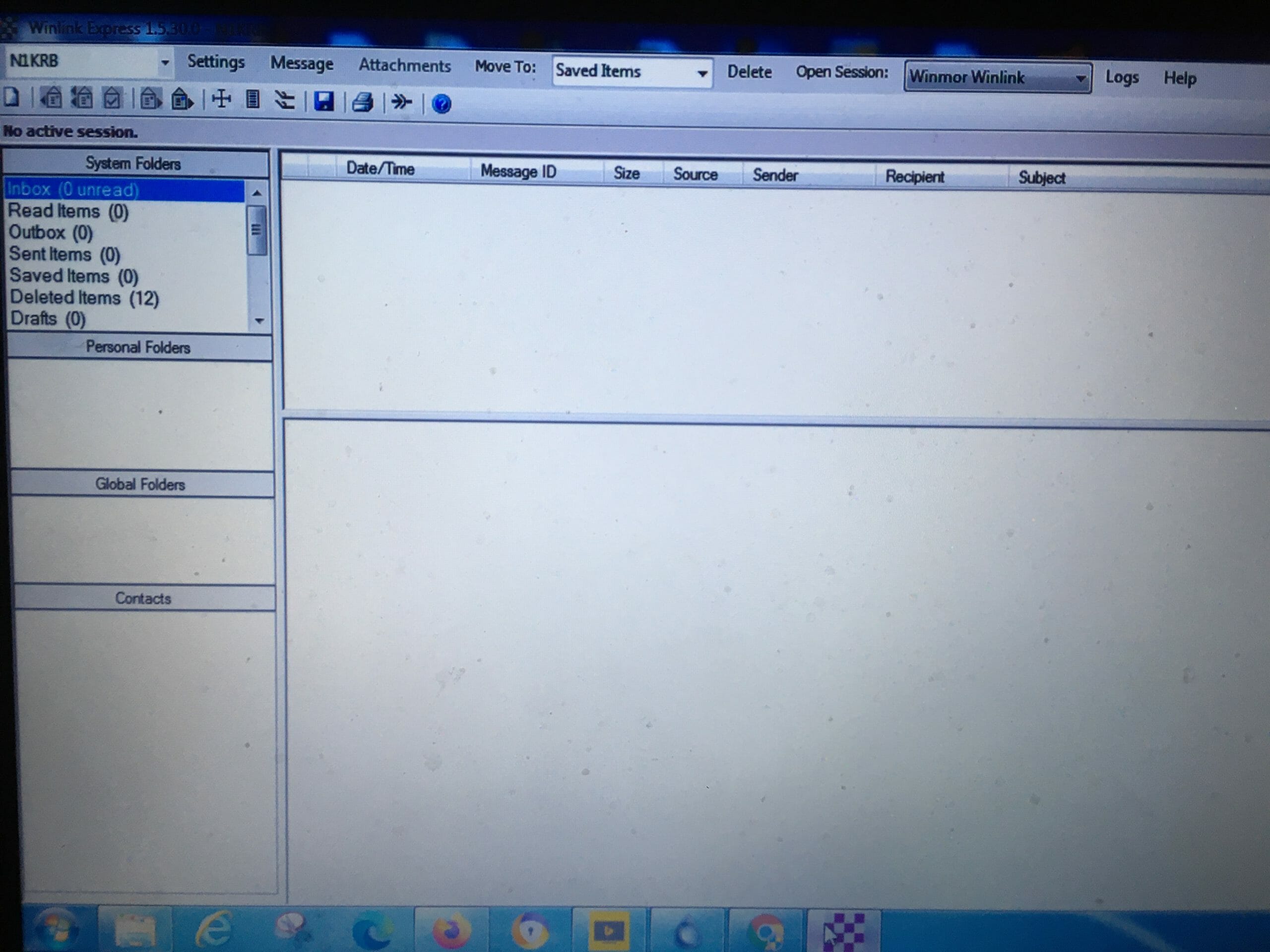
Some Good News
The good news is that the program you need – Winlink Express – is free and rather easy to install.
The other good news is if your computer and transceiver are already set up for other digital modes – such as FLDigi and WSJT-X – you’re ready to go.
Winlink Hardware Requirements
The type of sound card you need is already installed in some radios like the ICOM 7300. Otherwise, try the Signalink USB from HRO for about $ 125. It has input and output controls on the outside of the case, making adjustments easy.
For Xiegu users, Xiegu sells the CE19 card for about $ 35.
And if you want to use the CAT function to control PTT, use a standard 3.5 mm to USB serial transfer dongle.
However, if you are capable of using the VOX function on your radio, no CAT cable is needed
Setting Up Winlink
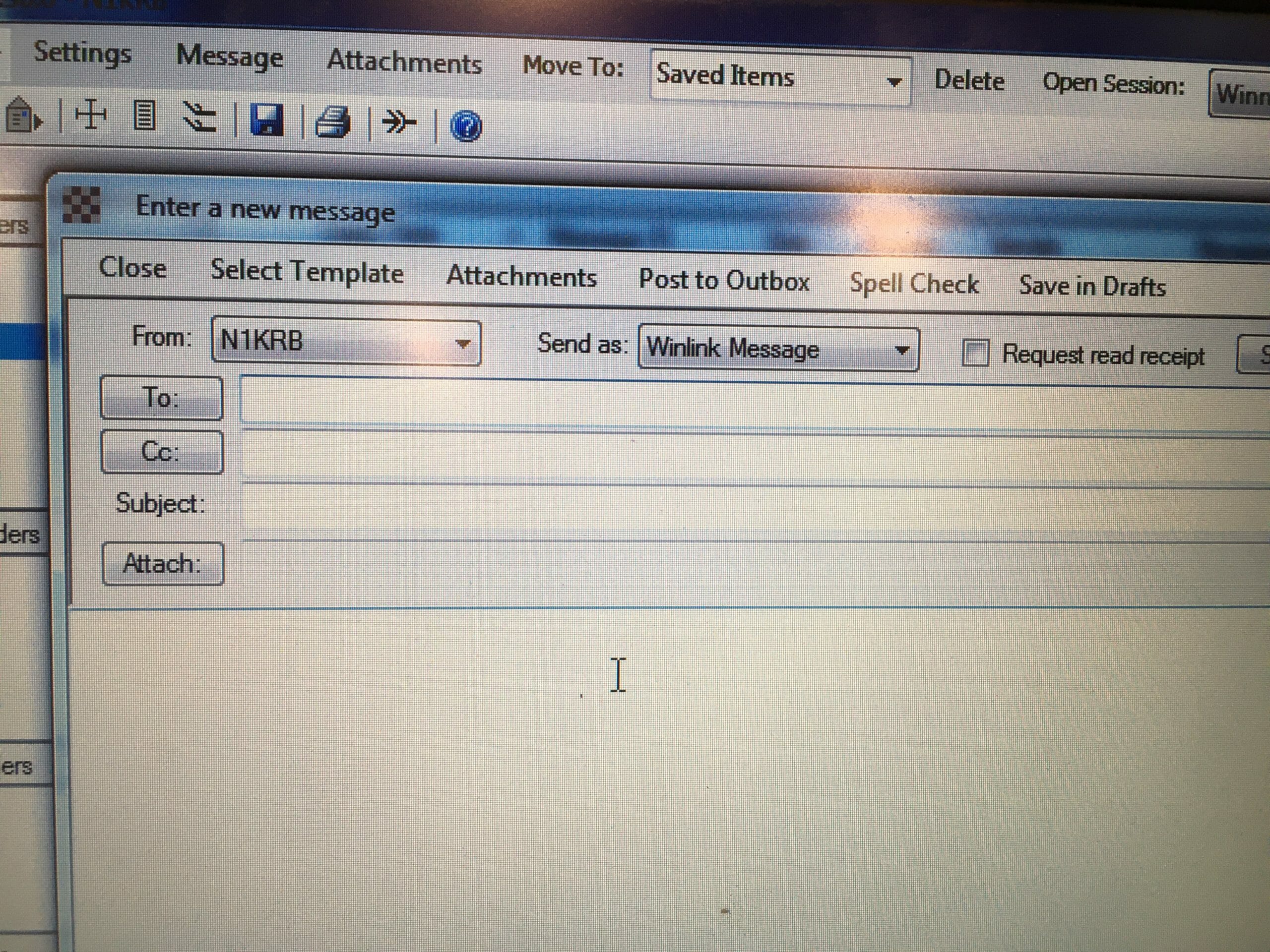
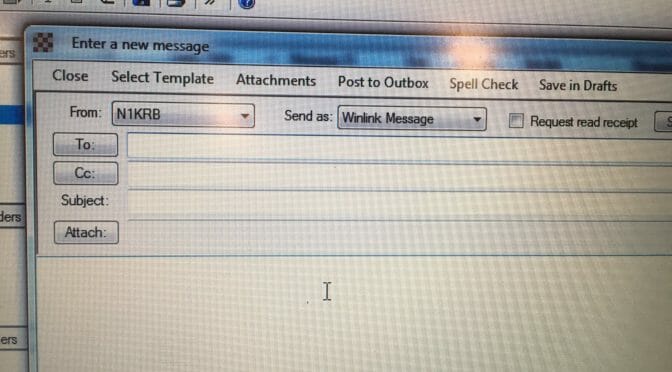
After you’ve installed the program, it will open up to the main page. Go to the top-left of the page and click the ‘Message’ button which will open up the Email page. From there, write a Test message – with a proper email address, subject, and message – then click ‘Post To Outbox’.
Go back to the top-left of the main page to the ‘Settings’ button and fill out all the required information – your call sign, your name, grid location, etc.
Then go back to the top-right of the main page and make sure the drop-down menu is on ‘Winmor Winlink’. And finally, click on the ‘Open Session’ button, just to the left. This will open up a whole new window which will require you to fill out more information.

The ‘Open Session’ Page
When you get to the ‘Open Session’ page, go to the upper left-hand corner to the next ‘Settings’ button. The first item to open up is the ‘Winmor TNC Setup’. Here you assign the audio input and output drivers to the sound card.
If you need to use the CAT function, go to the next settings’ item – ‘Radio Setup’ – where you will indicate what radio you’re using.
And finally, go to the top-center of the page and click on the ‘Station Selection’ button, to determine what HF station to use. A list of all the stations available will appear, based on your grid location, with those highlighted in Green as the best choices.
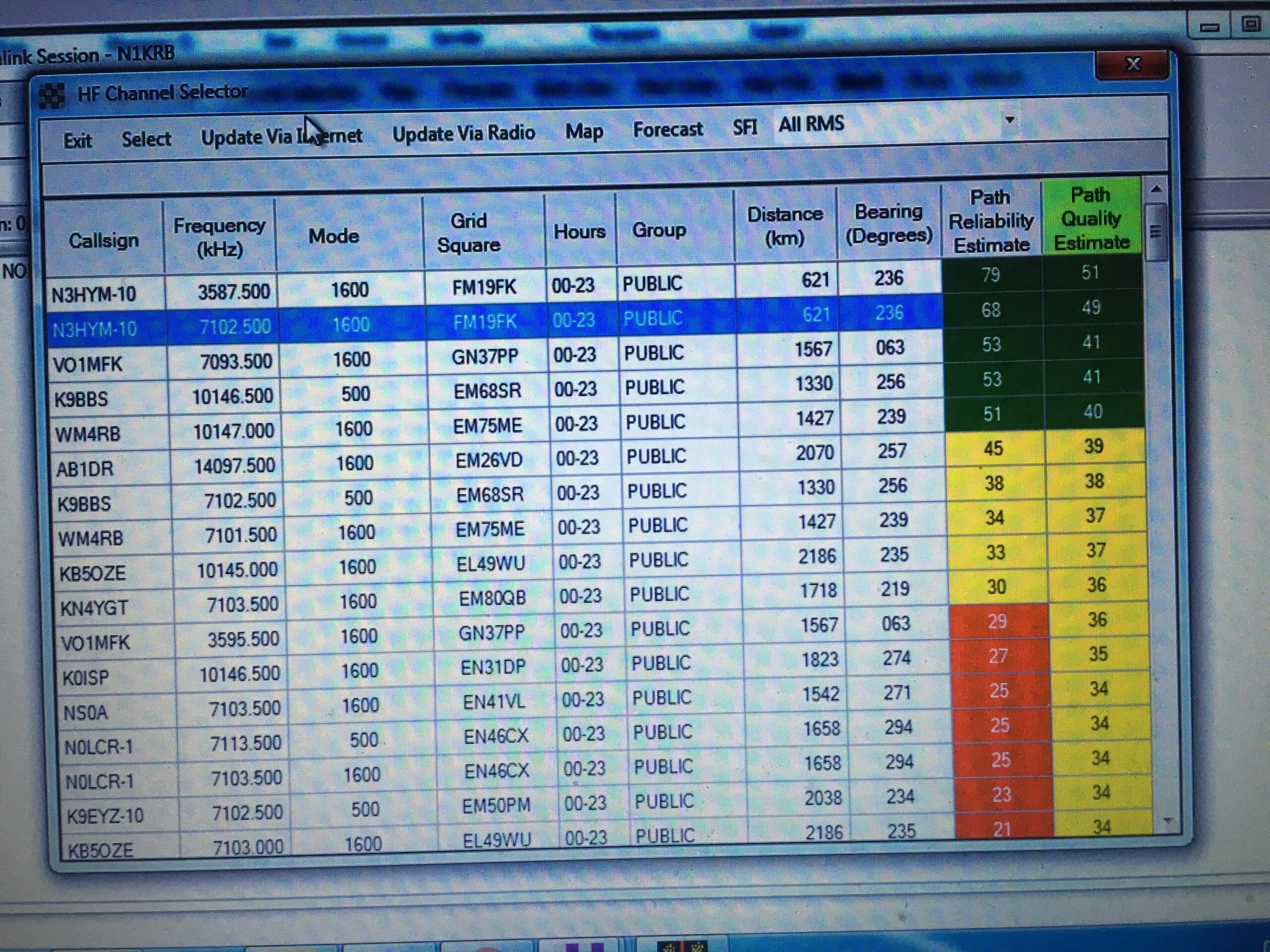
With all this said and done, go to the right-top side of the window and click on ‘Send’. A new window will appear – the TNC Card window – showing you all the handshaking going on as the software starts to search for the station and sending the message. When completed, the email sitting in the Outbox will be gone.
It does take a few minutes for all of this to happen, so you have enough time to get a cup of coffee while you’re waiting.
This has been a quick description of how to set up Winlink. There is a lot more information on YouTube and other Internet sources if you need it. I know I did.
From my experience, it took some trial and error before I got the audio inputs and outputs set up correctly. Also, I needed to find the proper setting for the VOX gain.
And I also found the best station from New Hampshire to use is the one in Maryland, which required 50 watts to reach it.
But, now that I’ve done all of this, I feel I’m ready for the big one to hit, knowing that I can get an emergency email out to the outside world …. only if I can remember all the steps.
Randall, N1KRB